
By Devonte Longmire
What’s a Screenshot? (And How to Take One)
A screenshot is like taking a photo of whatever is showing on your computer, tablet, or phone screen. It lets you capture exactly what you’re seeing—whether it’s a funny message, an error, a picture, or a receipt—and save it as an image you can look at later or share with someone.
Why Screenshots Are Useful
Screenshots are helpful when:
You want to show someone what you’re seeing without trying to explain it.
You need proof of something, like a payment or a message.
You run into a problem on your device and want help—you can send a screenshot so someone can see what’s wrong.
How to Take a Screenshot
On a Windows computer:
Press the PrtScn (Print Screen) key to copy your screen. Then open a program like Word or Paint, right-click, and select Paste.
Or press Windows key + Shift + S to choose what part of the screen you want to capture. It’ll save it to your clipboard so you can paste it somewhere.
On a Mac computer:
Press Command (⌘) + Shift + 4 to choose a specific part of the screen to capture.
Or press Command (⌘) + Shift + 3 to capture the entire screen. It’ll save the image right to your desktop.
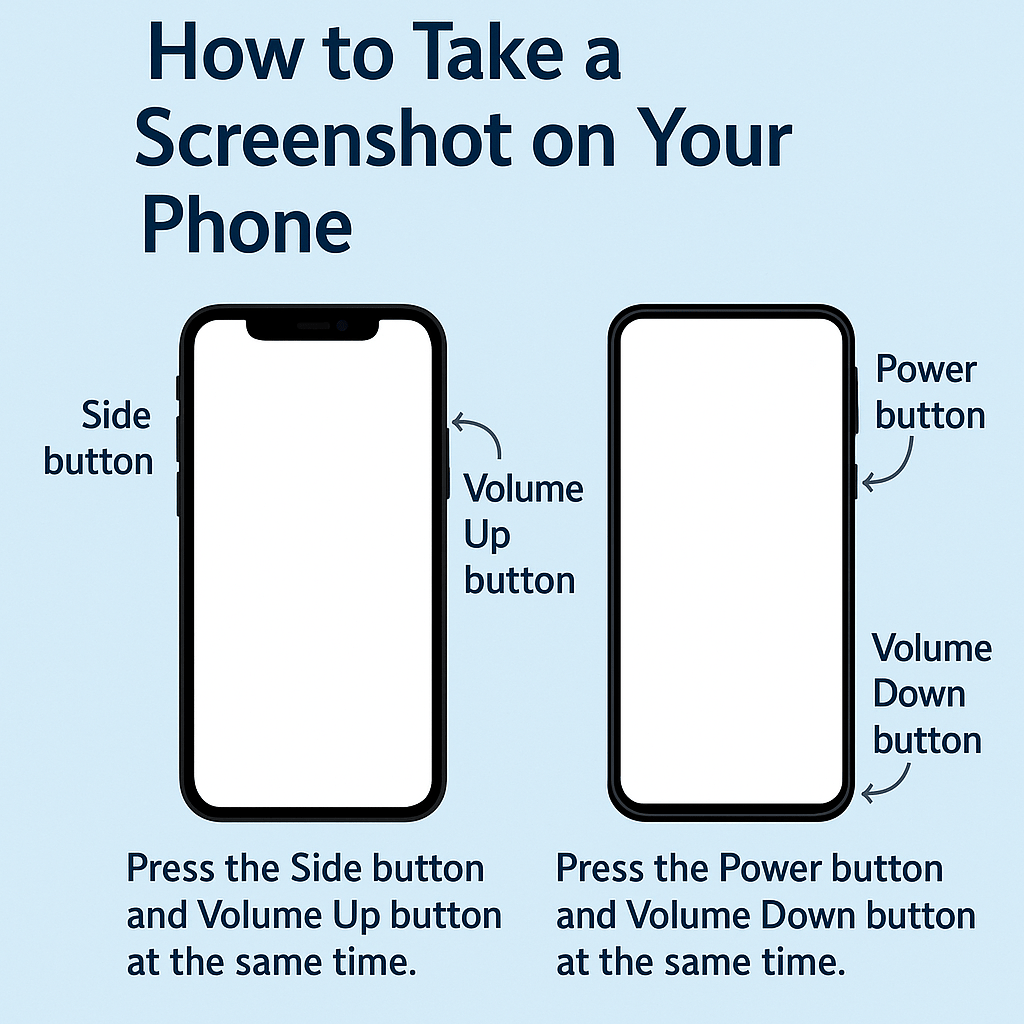
On an iPhone or iPad:
Press the Side button and Volume Up button at the same time. The image will appear in the bottom corner and be saved to your Photos app.
On an Android phone or tablet:
Press the Power button and Volume Down button at the same time. The screenshot will be saved in your Photos or Gallery.
A Helpful Tip
You can send a screenshot in a text or email to get help faster. It takes the guesswork out of trying to describe what’s going on.
 Tech Teacher
Leave a comment